How It Works & FAQ
Monitor your websites and services effortlessly and get alerted when things go wrong.
Step-by-Step Guide
1 Add a Monitor
Enter the hostname (e.g., example.com) and the port you want to check (like 80 for HTTP or 443 for HTTPS). Set how frequently you want us to ping it.
2 Set Thresholds
Decide how sensitive the monitor should be. You can choose to be alerted immediately on the first failure, or wait until it fails a few consecutive times to avoid false alarms.
3 Configure Alerts
Provide an email address or a Slack Webhook URL. We will notify you the moment your threshold is crossed, and alert you again when the service recovers.
4 Track Uptime
View your dashboard to see a beautiful 30-day sparkline graph of your uptime percentages and a log of recent checks.
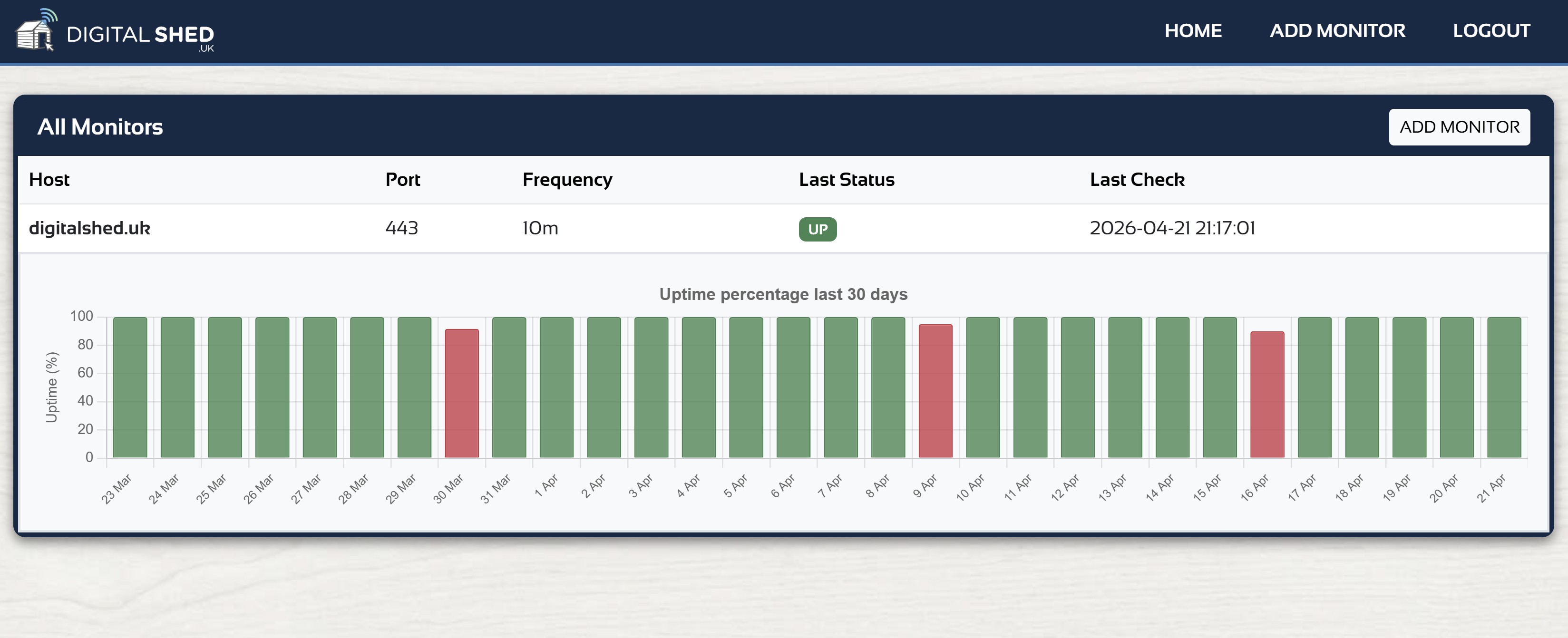
Example of the monitoring dashboard and 30-day uptime graphs.
- Account Creation: To begin, click "Signup" and verify your email address.
- Usage Limits: Because this is a free tool, each user is currently limited to a maximum of 3 active monitors.
- Data Retention: We store the results of every check so you can view your historical uptime. To keep the system fast, we automatically clear check data older than 30 days.
- Connection Method: We check your services by attempting to open a direct socket connection to the specified host and port.
- Timeouts: If your server takes longer than 10 seconds to respond, we will record that check as a failure (DOWN).
- Frequency: Our system runs every minute. It will evaluate your configured frequency (e.g., every 5 minutes) and only ping your server when it is time.
- Smart Alerting: We won't spam you. If your server goes down, you only get one alert. You won't receive another notification until the server comes back online.
- False Positives: We recommend setting your "Mark Failed After" setting to at least 2 or 3. This prevents a momentary network blip from waking you up in the middle of the night.
- Slack Integration: To use Slack, generate an Incoming Webhook URL in your Slack workspace and paste it directly into the monitor configuration.
Ready to start? Create Your Free Account